
A great book cover is crucial for catching a reader’s eye, especially in the horror genre, where mood and atmosphere play a significant role. Many indie authors may not have the budget to hire a professional designer, but with tools like Canva, creating a compelling and eerie horror book cover is easier than ever.
What is Canva and Why Use It?
Canva is a free, user-friendly graphic design application that allows users to create professional-quality designs with a simple drag-and-drop interface. It offers a vast library of fonts, images, and design elements, making it an excellent choice for authors who want to design their own book covers without the steep learning curve of professional software like Photoshop. I create most of my book covers using Photoshop, but I’ve also started using Canva for a lot of graphic design needs. There are pro and free options available, and this cover was created entirely using the free options available.
Why Should Authors Know How to Design Their Own Covers?
- Budget-Friendly: Hiring a professional cover designer can be expensive, and if you’re on a tight budget, knowing how to create your own covers can save you money.
- Creative Control: Designing your own cover gives you full control over how your book is represented.
- Quick Edits: Need a quick tweak or want to A/B test different covers? Doing it yourself means you can make changes anytime.
If you’re on a budget, you can always purchase a premade cover, like the ones I sell over at: thebookcoverdesigner.com/designers/bryce-raffle-designs
I’ve got several covers over there that are well suited for horror, like this one:
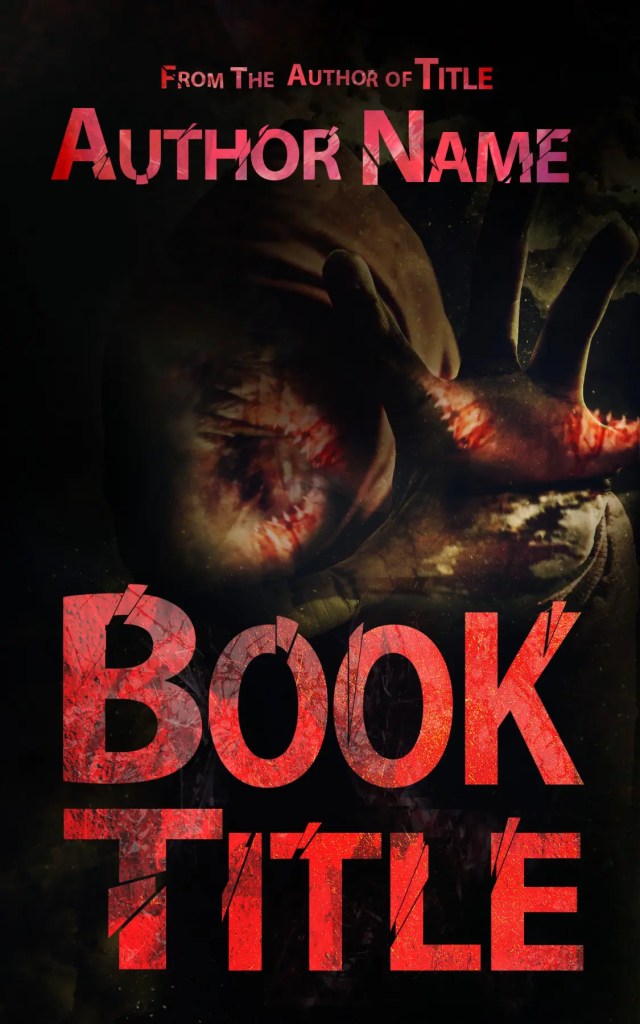
Now, let’s walk through the steps to create a horror book cover using Canva.
Steps to Create a Horror Book Cover in Canva
Step 1: Create a New Project
- First, you’ll need to create an account. Either download the Canva desktop application or use the browser version at www.canva.com/
- Next, open Canva and start a new project (Click “Create A New Project” and select the Book Cover template. Canva provides a preset size for book covers, ensuring it fits standard eBook and print formats.

Step 2: Add Text
- Choose a horror-appropriate font. I’ve selected Lava Pro Grunge for the title and Open Sans Light (in all caps) for the author’s name.

- Change the background to black and set the text color to white for a stark, eerie contrast.

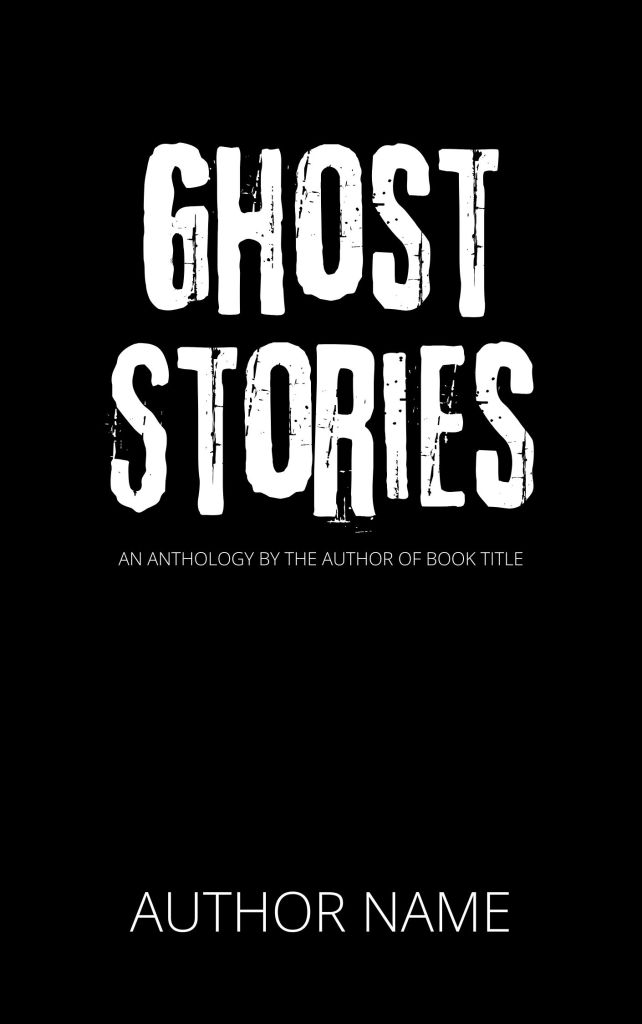
Step 3: Choose a Background Image
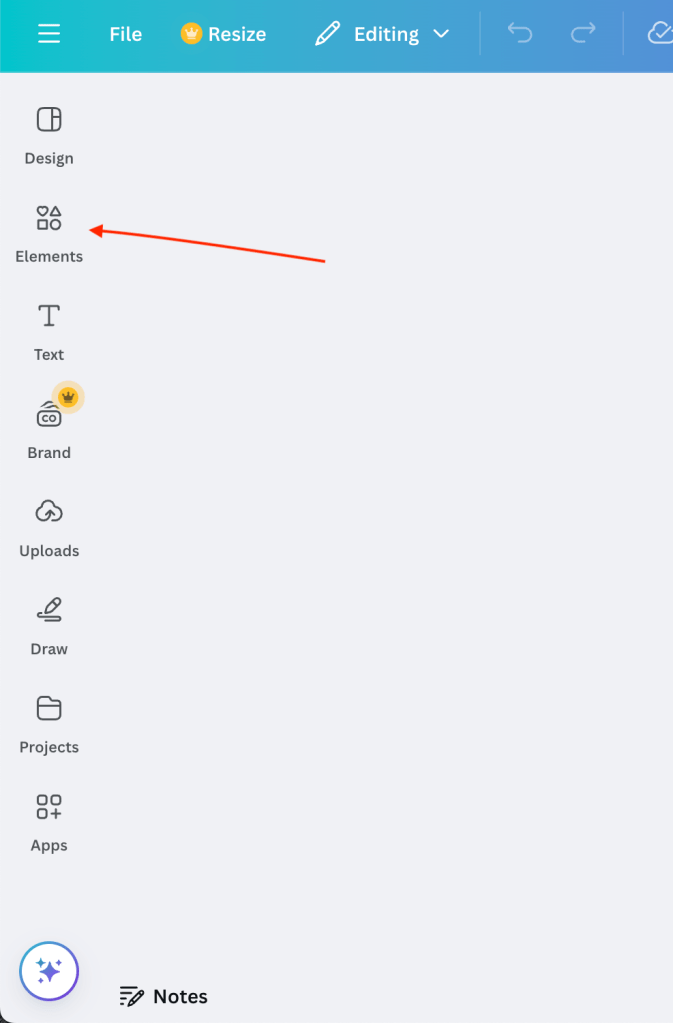
- Search “Horror” in Canva’s elements tab to find a suitable image.
- I’ve chosen “Window in a Dark Room” by Stanislav Kondratiev (sourced from Pexels).
- Resize and adjust placement, ensuring the focal point aligns with the cover’s composition. I’ve also adjusted the size of the word “Ghost” and “Stories” so both fit nicely into the window.
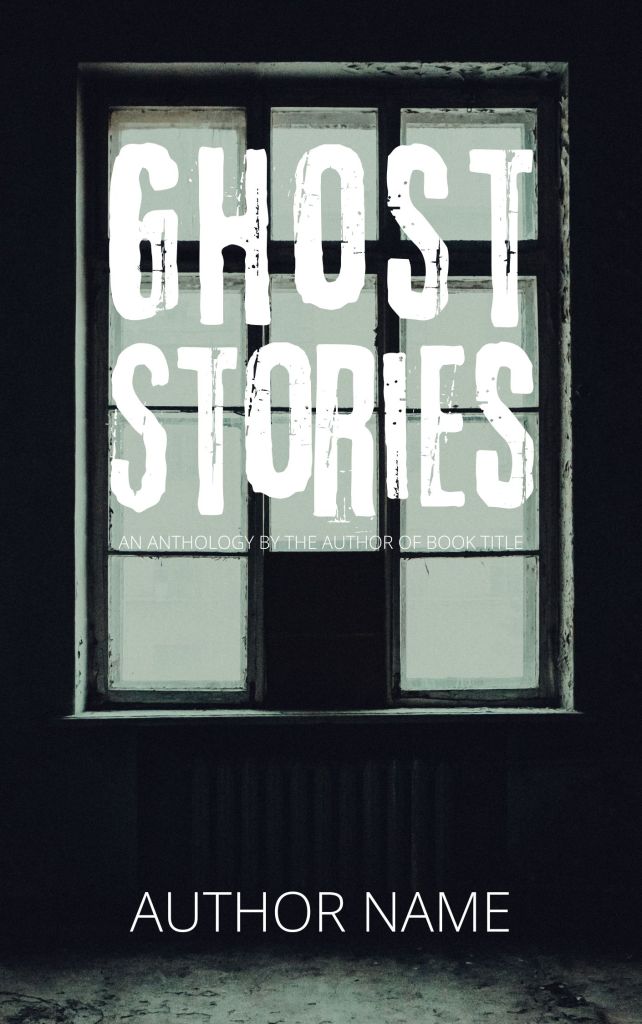
- Drag the image layer below the text using Canva’s layer adjustment tool.

Step 4: Adjust the Colors
- Apply the Duotone effect for a more chilling aesthetic. First, click on your image, then click “Edit,” then choose Duotone under Effects.

- I started with the Cherry preset and customized the colors to bright red and black, creating a sinister glow.

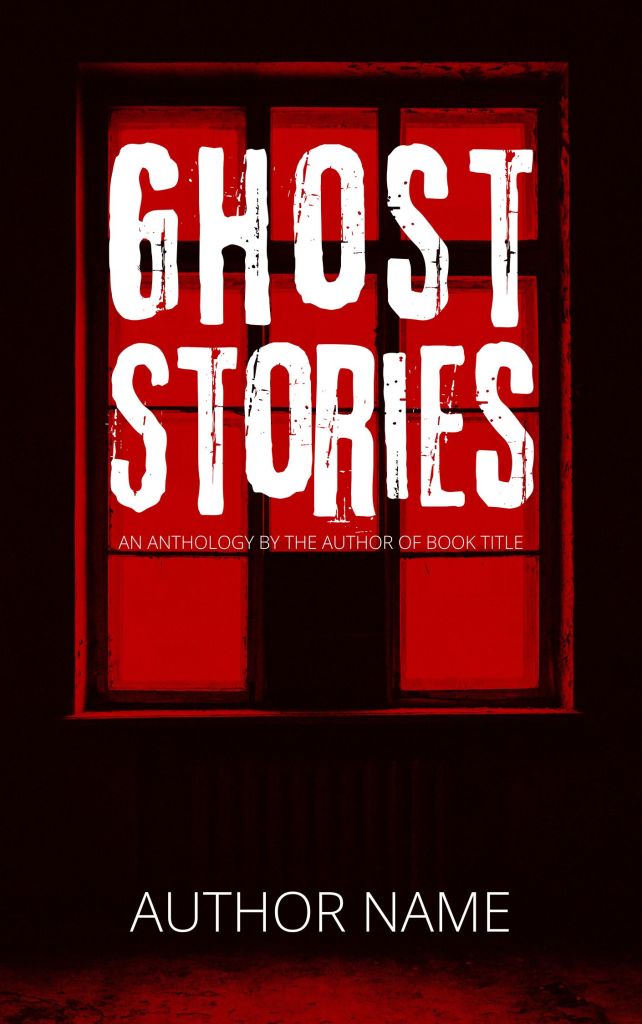
I feel like we’re already getting somewhere, but let’s make it even more interesting.
Step 5: Add Fog Layers
- I used “Watercolor Abstract Border” by K Ching Ching to create an eerie mist. I duplicated each border element (Command+D or Control+D) and rotated them so create a border around the text.
- Adjust the layer position, dragging the fog layers so they’re below the text.
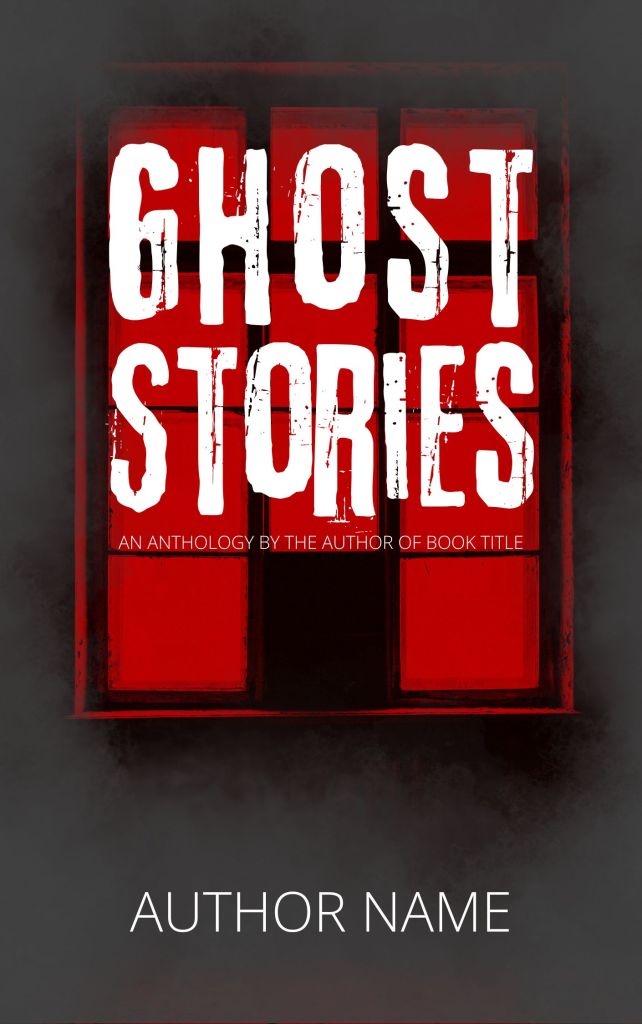
Step 6: Add Additional Horror Elements
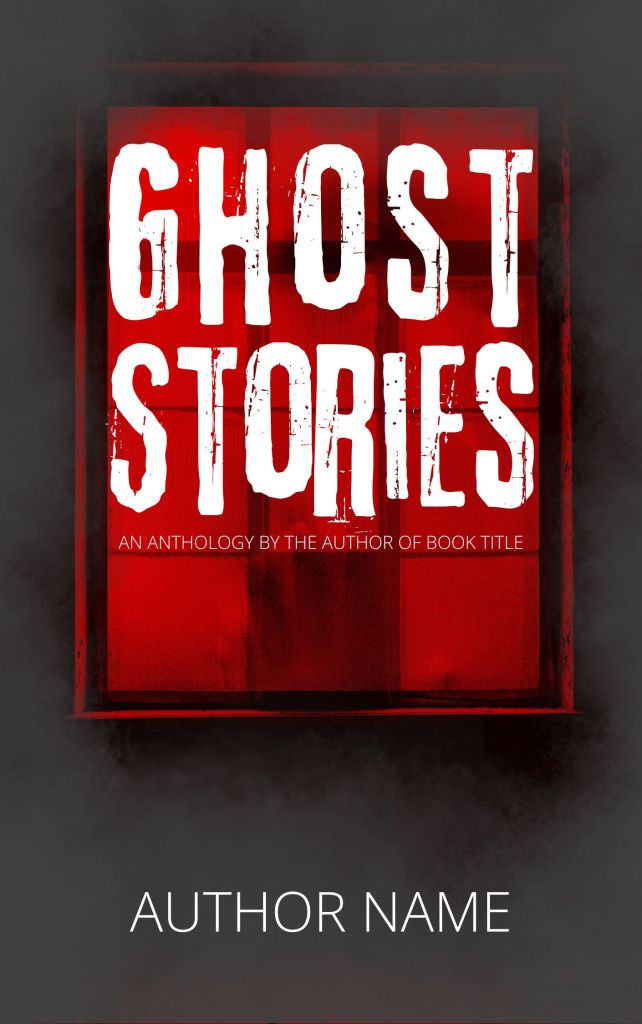
- Search “horror” in Elements again and choose an additional horror element or photo. I’ve chosen “Creepy Woman Covered in Fabric” by Aalok Soni (sourced from baseimage).
- Then, I’ve cropped the image so that the creepy figure appears inside the window.
- I also adjusted transparency so the figure blends into the scene without overpowering it.
The result:
Step 7: Add Grunge Textures Below the Text
- Search “grunge” in Canva’s elements tab under “graphics.”
- Choose a grunge texture element, adjust size and transparency, and position it below the text for a distressed effect.
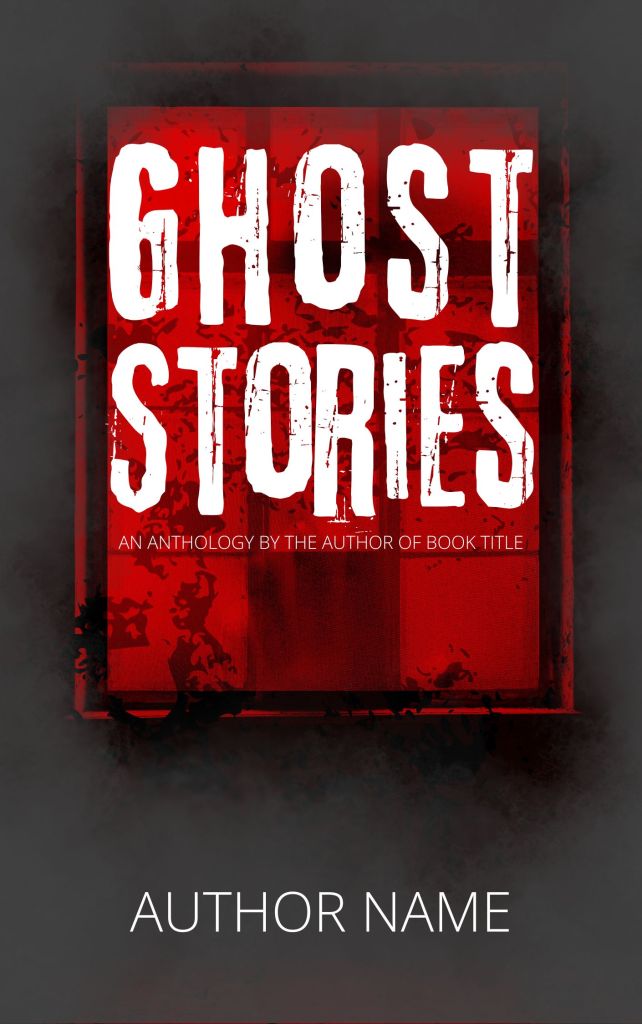
Step 8: Add More Grunge Elements Above the Text
- For a blood-splatter effect, I used a grunge element and changed its color to a dark red and placed it above the text to add a visceral horror element.

Step 9: Adjust the Position of the Creepy Hands
- Using the crop tool, I repositioned the hands in the image for a more dynamic composition.
Final Touches
- Review the design and make any final adjustments.
- Ensure text is legible and all elements create a cohesive horror aesthetic.
Here’s my final book cover:
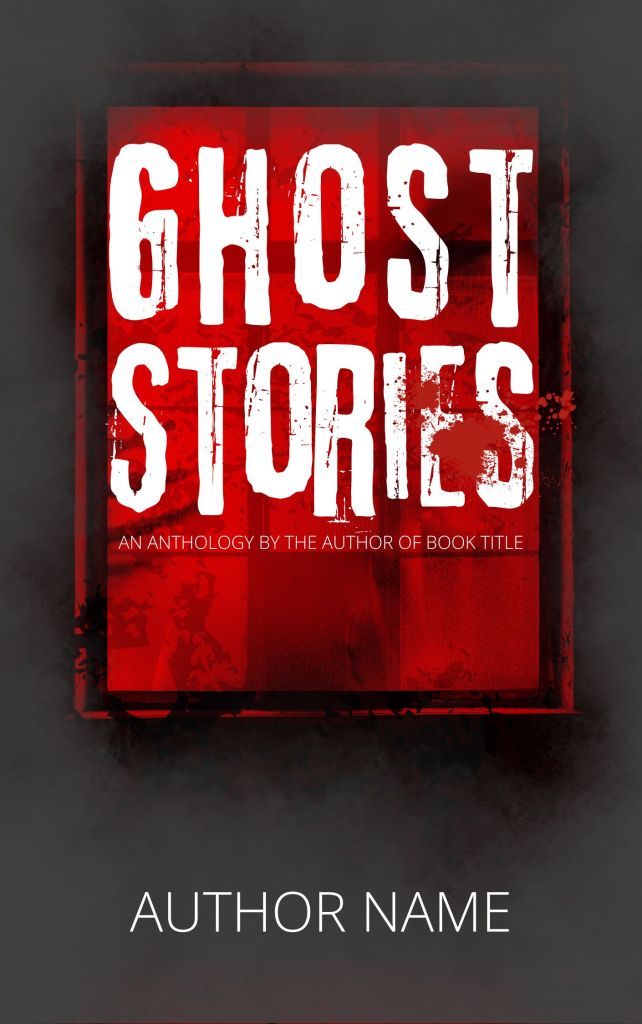
Not too bad for a free software program and just a few minutes of time. With the right font choices, eerie imagery, and careful layering of elements, you can design a compelling, professional-quality cover that really grabs readers’ attention.
Be sure to download the final design as a high-resolution PNG or PDF for publication (do this by clicking Share>Download).
And remember, if you’d rather not do it yourself, you can always snag one of my premade covers from thebookcoverdesigner.com/designers/bryce-raffle-designs
Would you try designing your own book cover? Let me know in the comments!
 Threads that Bind
5 responses to “Creating A Horror Book Cover Using Canva (A Free Graphic Design Application)”
Now that’s step by step! Much obliged, Bryce, detailed and informative as always. I need to use this to redo my Horror In The Hundreds cover.
LikeLiked by 2 people
Thanks, glad to hear it may be of help! I wasn’t sure how people would respond to this kind of post, but as it seems to have hit the mark, I will likely post more along these lines in the future.
LikeLiked by 1 person
Damn, Bryce, it’s a rare day when an artist in any field gives away his secrets. I suspect this is going to be a very popular post. I just hope it doesn’t cost you any business! But, thank you sincerely for sharing this. It’s well-known that covers are one of the greatest expenses that indies face, and you may have just enabled someone who’s been wrestling with this problem prior to getting a book on the ‘zon. Your generosity transcends words.
LikeLike
Don’t worry, Jack! I won’t give away all of my secrets (for example, I do most of my work in Photoshop, which is much more capable of advanced editing than Canva, and I won’t be giving those secrets away for free), but I do believe that writers should succeed on the quality of their writing and not be held back by poor cover design. I am waging a war against bad book covers!
But in all seriousness, I suspect that while I’ve given away one method for book cover design using Canva, this may still prove too challenging or time consuming for some authors, who will likely still prefer to simply buy one of my premade covers, which as I mentioned, they can find over at thebookcoverdesigner.com/designers/bryce-raffle-designs
If this does prove a popular post, I’ll be sure to post more along these lines! And I’ll aim to get more premade covers in the horror genre up on my storefront.
Cheers!
LikeLiked by 1 person
This is good information, and much appreciated. I’ve generally made my own book covers using GIMP, a less capable Open Source (i.e., free) alternative to Photoshop. But based on your post, Canva seems to me to be a better DYI option, even at the free level. I may have to give it a shot. Thanks, Bryce!
LikeLiked by 1 person